UALA-admin
Setup
The Database configuration is in the .env.development file
the default configuration is
DB_NAME=uala_development
DB_USER=uala
DB_PASS=<redacted>
The default configuration can be overwritten creating .env.development.local file
Run Database seeds
Visit http://127.0.0.1:3000/backend/login
Authenticate with credentials used before to create your admin user
Visit http://127.0.0.1:3000/backend/venues
Actions
How to add new actions
As you can see here, to add a new available action for a specific model (in this case Venue),
open uala-admin/app/models/admin_abilities/models.rb file and add your action to the right model under MODELS_WITH_CUSTOM_AVAILABLE_ACTIONS.
Example for Venue model :setup_fiskaly, :deactivate_fiskaly and :fiskaly_info actions:

Batch Actions and delete_all
The delete_all built in batch action, as all the other batch actions, must be enabled in uala-admin/app/models/admin_abilities/models.rb.
i.e.,
'BlacklistTerm' => AVAILABLE_ACTIONS + [:batch_action],
Admin User
How to add new AdminUser
If you are trying to access the Admin section using Google Authentication and you encounter a message that says "User is not Authorized" (as shown in the image below), it's likely because there is no AdminUser configured for you yet.
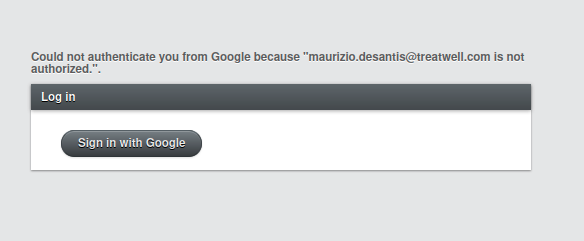
If you are a developer and have access to the environment's console, you can either create a new AdminUser or edit your existing one with the correct AdminGroup. In most cases, the "God" group may be what you're looking for. Search for it and assign it to your admin_groups_users.
Here are the necessary steps:
-
Click on
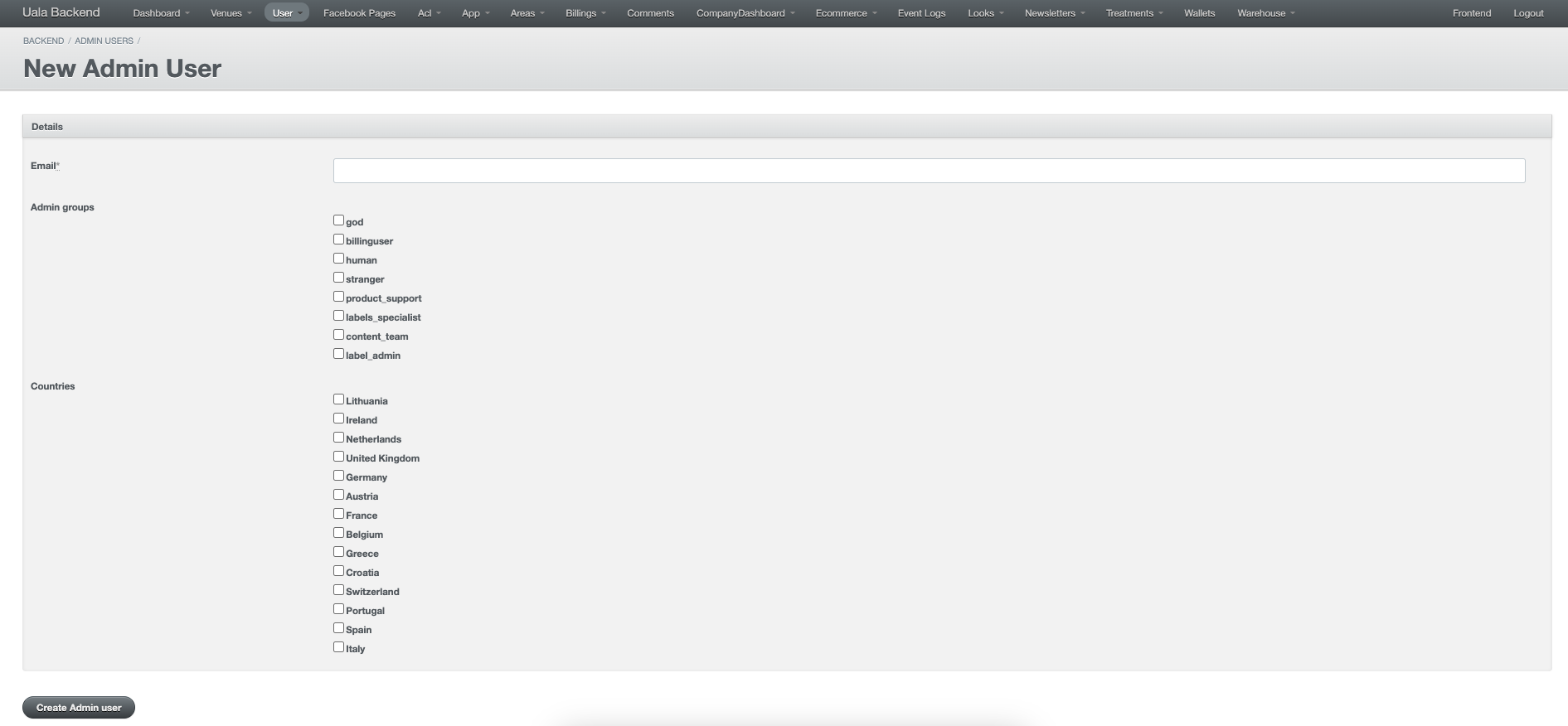
New Admin Userwithin theAdmin Usersection:
-
Use the new user's email address, which will be authenticated with a Google account, and select the required groups, as well as the countries that the user should have access to:
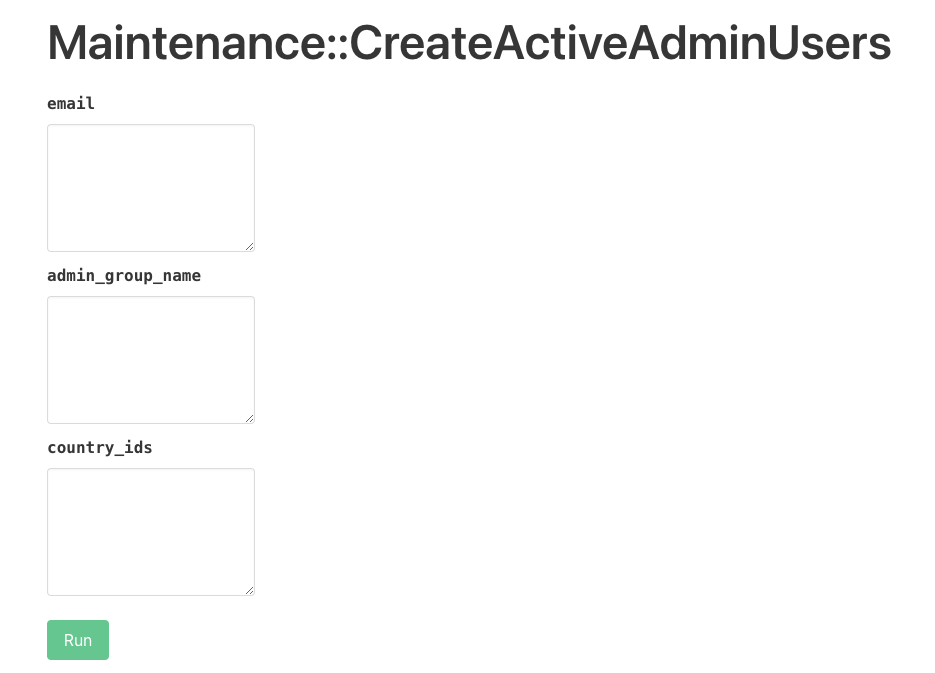
You can also achieve the same result using the Maintenance::CreateActiveAdminUsers maintenance task by prompting email, group and country IDs:
If you can't access those tools, you will need to request someone with AA access or maintenance task access to do this for you.
Admin Abilities
Admin abilities defines what an Admin User can do and what cannot do. The link between those abilities and the user is called AdminGroup and it has an identifier name.
Groups
There can be various groups depending on the access level granted. Each group defined FULL or NONE access to a set of abilities:
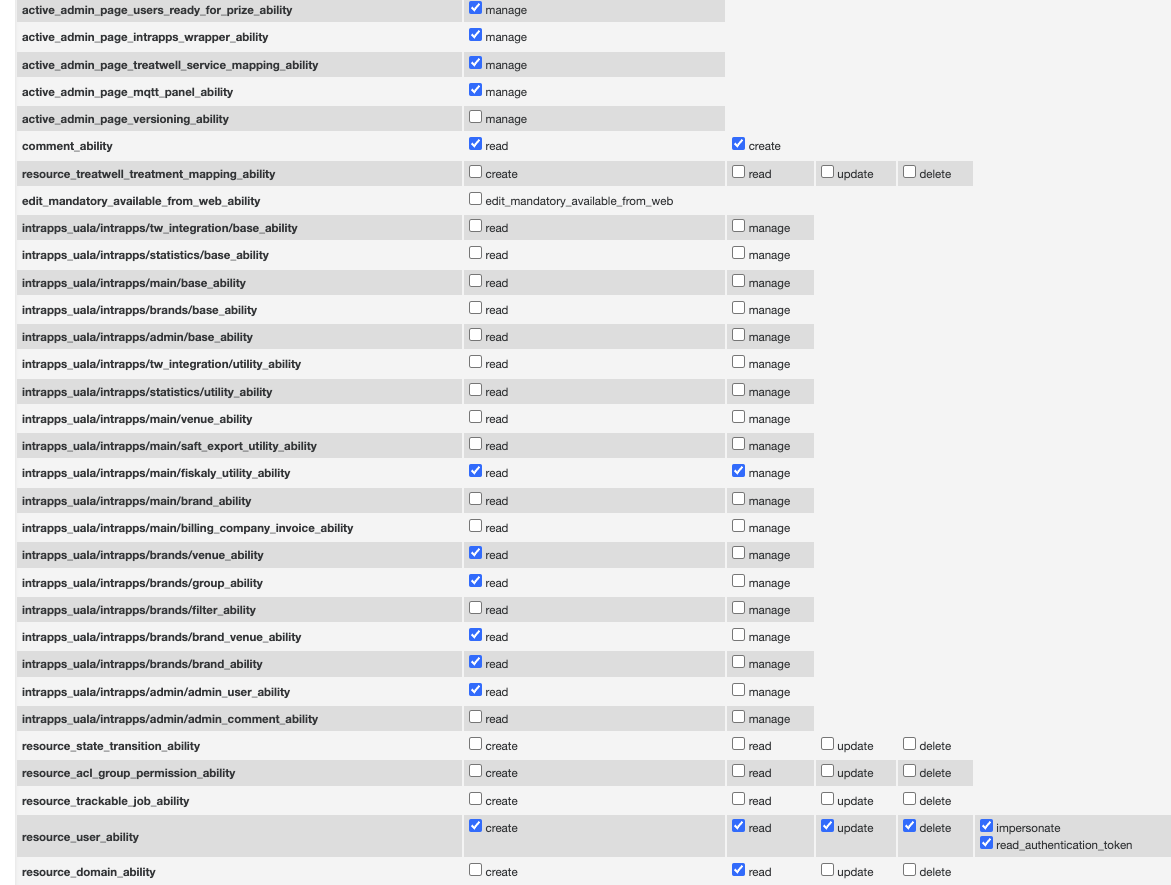
!!!info Please note Adding more than 1 group to a user is not properly working, thus it's advisable to set one and only one group per user. !!!
Add permission of AdminPages
Admin page authorization is done in a slightly different way because they don't necessarily manage a model or points to an additional DB (versions for instance). So, to add authorization to this page, the name of the registered section should be listed on the file AdminAbilities::ActiveAdminPages. Once the server is booted up, new permission will be available for enabling, containing the new section added as part of its name (active_admin_page_mqtt_panel_ability, for instance) in the edit page of a group (god, support, superhero). Then, choose manage as the enabled value and save it.